
Learn the app in 6 short videos.
About 6 minutes. Tap the video you need.
Video 1: Getting to know the app
Language, home screen and filters. 46 s
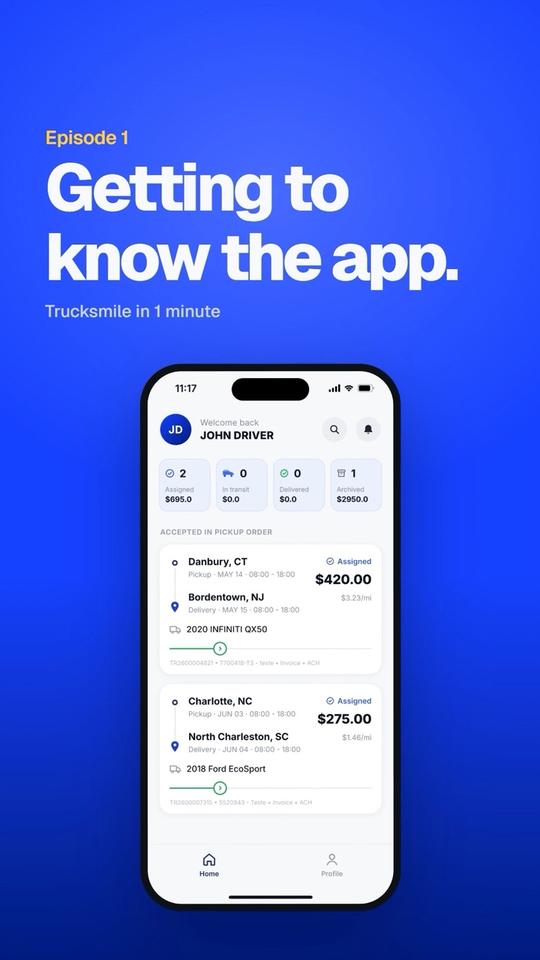
A quick tour of the Trucksmile app: how to pick your language (English, Spanish or Portuguese), what the home screen shows, and how to use the filters to see only the loads you want.
You will learn how to
- Choose your language: English, Spanish or Portuguese
- Read the home screen: each card is one load
- Use the filters: Assigned, In transit, Delivered and Archived
Common questions
- Is the app available in English?
- Yes. The app works in English, Spanish and Portuguese. You can change the language anytime under Profile, then Language.
- How do I see only one kind of load?
- Tap a filter to see only those loads. Tap again to see them all.
Video 2: Inside a load
Route, pickup, delivery and notes. 55 s
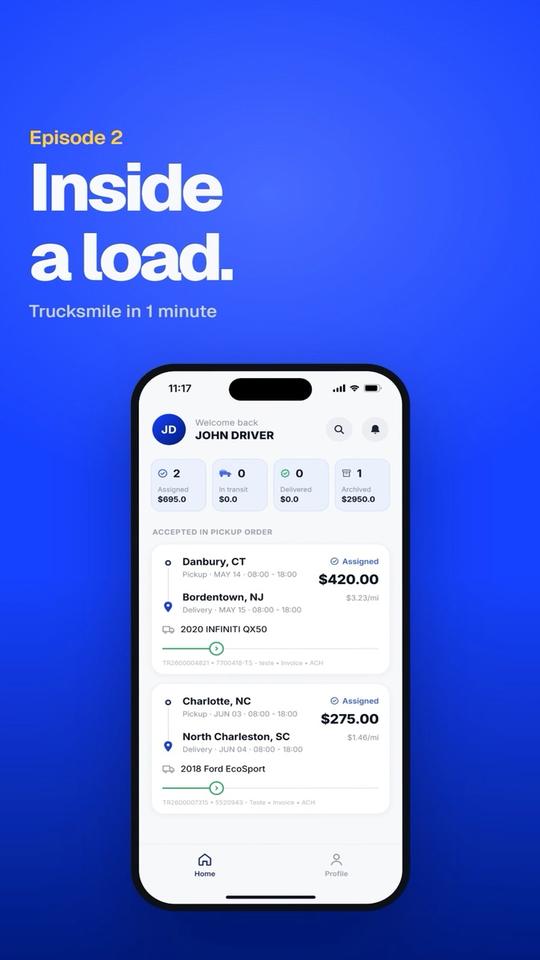
Inside a load in the Trucksmile app: the route on the map, pickup and delivery details, the on-site contact, how to navigate with Apple Maps, Google Maps or Waze, how to call the contact, and where to read the dispatcher's notes.
You will learn how to
- See the route on the map, with drive time and miles
- Check the address, time window and contact for pickup and delivery
- Open navigation in Apple Maps, Google Maps or Waze
- Call the pickup or delivery contact straight from the app
- Read the notes the dispatcher left on the load
Common questions
- What are the load notes?
- Messages from the dispatcher to the driver about pickup and delivery, like the PIN number and the gate pass.
- Can I use my own maps app?
- Yes. The app offers Apple Maps, Google Maps and Waze.
Video 3: Documents and payment
BOLs, attachments and load details. 41 s
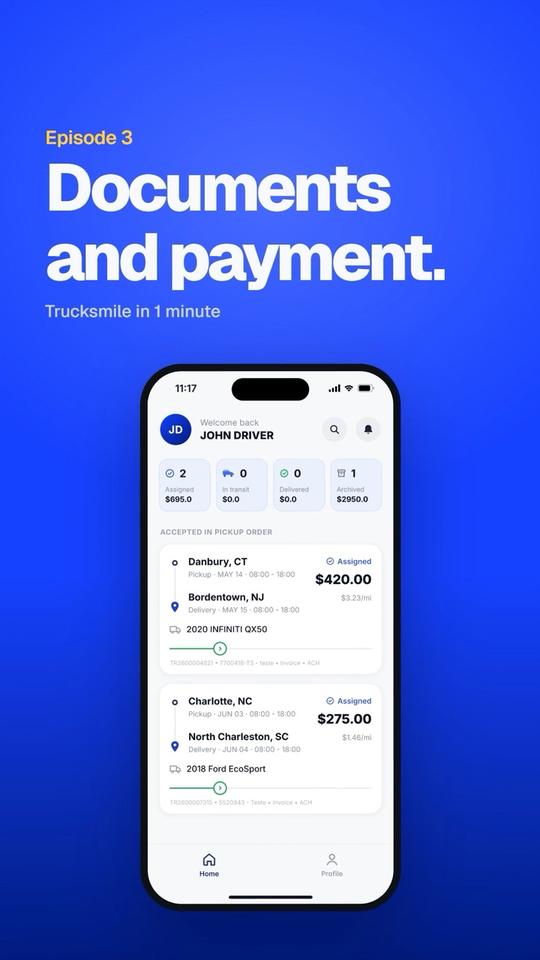
Documents and payment in the Trucksmile app: where the pickup and delivery BOLs show up, how to read the payment (total, broker fee and payout), the tracking and load IDs, and how to open the load's dispatch sheet.
You will learn how to
- See the pickup BOL and the delivery BOL
- See the payment block of the load: total, broker fee, payment type and method
- Open the dispatch sheet (PDF) in the attachments
- Find the gate pass in the attachments when the load has one
Common questions
- What is the BOL?
- The proof of pickup and delivery of the vehicle. The photos show up after each inspection.
- What is the dispatch sheet?
- The load's dispatch order, as a PDF, with pickup, delivery, vehicle and price details.
Video 4: Loads from other platforms
When the inspection is done outside the app. 1 min 8 s
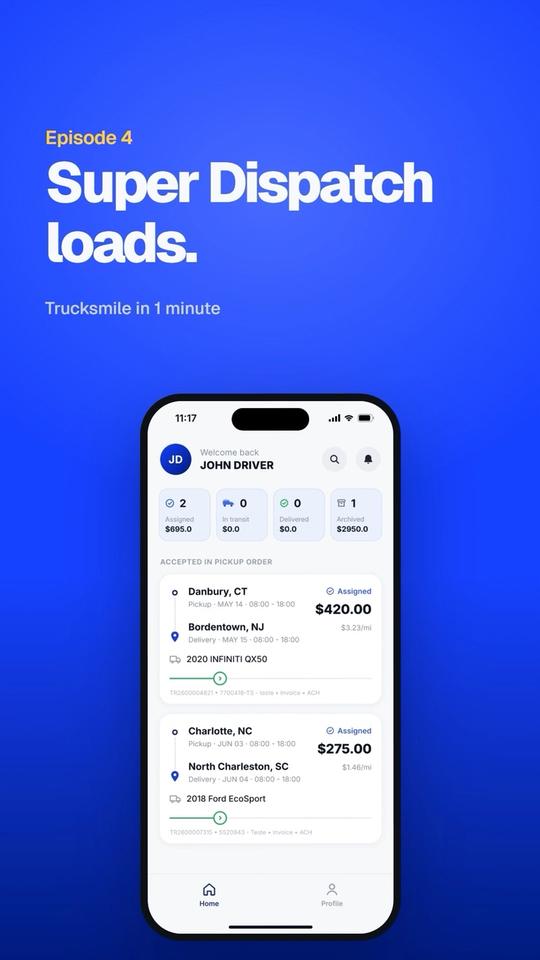
Some loads come from another platform, with the inspection done in that platform's app. See how to start the pickup, confirm in the Trucksmile app that the inspection is done and unlock the delivery.
You will learn how to
- Start the pickup as usual, with "Arrived pickup"
- Do the inspection in the other platform's app and come back to confirm
- Understand why "Start delivery" stays locked until you confirm
- Repeat at delivery until the load shows as "Delivered"
Common questions
- Do I need to inspect the car twice?
- No. The inspection is done in the other platform's app. In the Trucksmile app you only confirm it was completed.
- Why is the "Start delivery" button locked?
- Because the pickup inspection has not been confirmed yet. Once you confirm it, the button unlocks.
Video 5: Pickup photo inspection
VIN, odometer and the 6 photos. 1 min 5 s
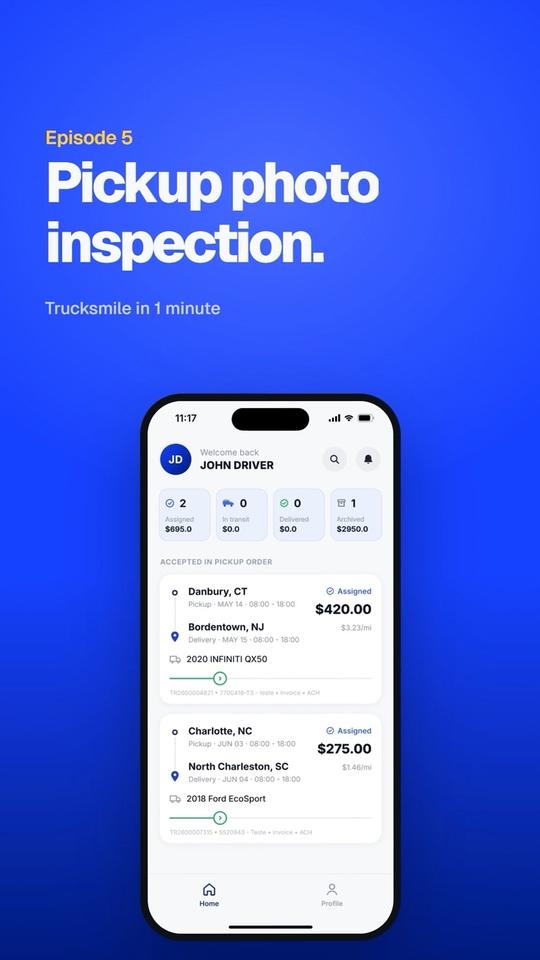
Pickup photo inspection in the Trucksmile app: how to confirm the VIN, enter the odometer and take the six inspection photos (front, right side, back, left side, roof and odometer) by lining the car up with the outline, then review them.
You will learn how to
- Tap "Arrived pickup" and open the vehicle
- Check the VIN with its last 4 digits and enter the odometer
- Take the 6 photos: front, right side, back, left side, roof and odometer
- Review the photos: take more or delete
Common questions
- What if the VIN does not match?
- Check the vehicle plate and fix it.
- Can I take more than one photo?
- Yes. The video shows more than one photo per position.
Video 6: Damage, signatures and delivery
From the first scratch to "Complete delivery". 1 min 19 s
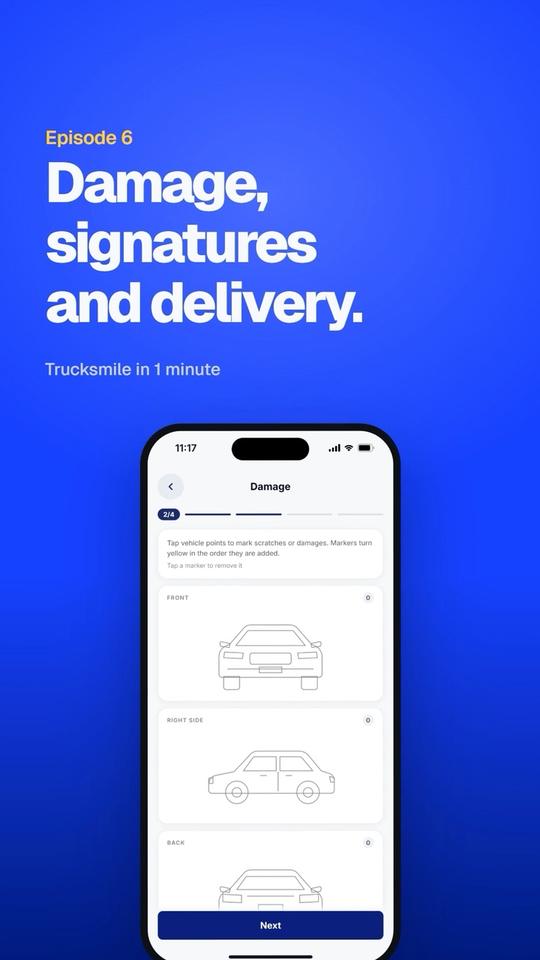
Damage, signatures and delivery in the Trucksmile app: how to mark scratches and dents on the car, sign the inspection, see the photos upload on their own, and complete the delivery.
You will learn how to
- Mark scratches and dents by tapping the car
- Write a note (it is optional)
- Collect the signatures: driver and consignor at pickup, driver and consignee at delivery
- Let the photos upload on their own, in the background
- Complete the delivery
Common questions
- I marked the wrong spot. Now what?
- Tap the mark to remove it.
- Do the photos upload on their own?
- Yes. Upload happens in the background. Keep your phone online.
One load, start to finish
What you will repeat on every load:
- Arrived pickup
- VIN and photos
- Damage
- Signatures
- En route
- Arrived destination
- Repeat the inspection
- Complete delivery
What is the Trucksmile app?
The Trucksmile app is the driver app for car hauling in the United States: moving vehicles with a pickup truck and trailer. Drivers follow the loads assigned to them, run the vehicle inspection with photos and signatures, and take each delivery step by step. It works in English, Portuguese and Spanish, on iPhone (iOS) and Android. This page puts the 6 video tutorials in the order you use them: from first login to completing the delivery.
Still have a question?
Talk to our team.